
Getting started · about 3 minutes
You've got your ActiveBook.
Here's how to read it.
ActiveBooks are read in the free ActiveBook app — not in your web browser. Follow these steps once and you're set on every device.
Your order is complete — nothing to download from the website
As soon as your order goes through, every title you ordered is placed in My library on your ActiveBook account. There is no file to download and no code to type — the book is tied to the email address you ordered with.
Get the free ActiveBook app
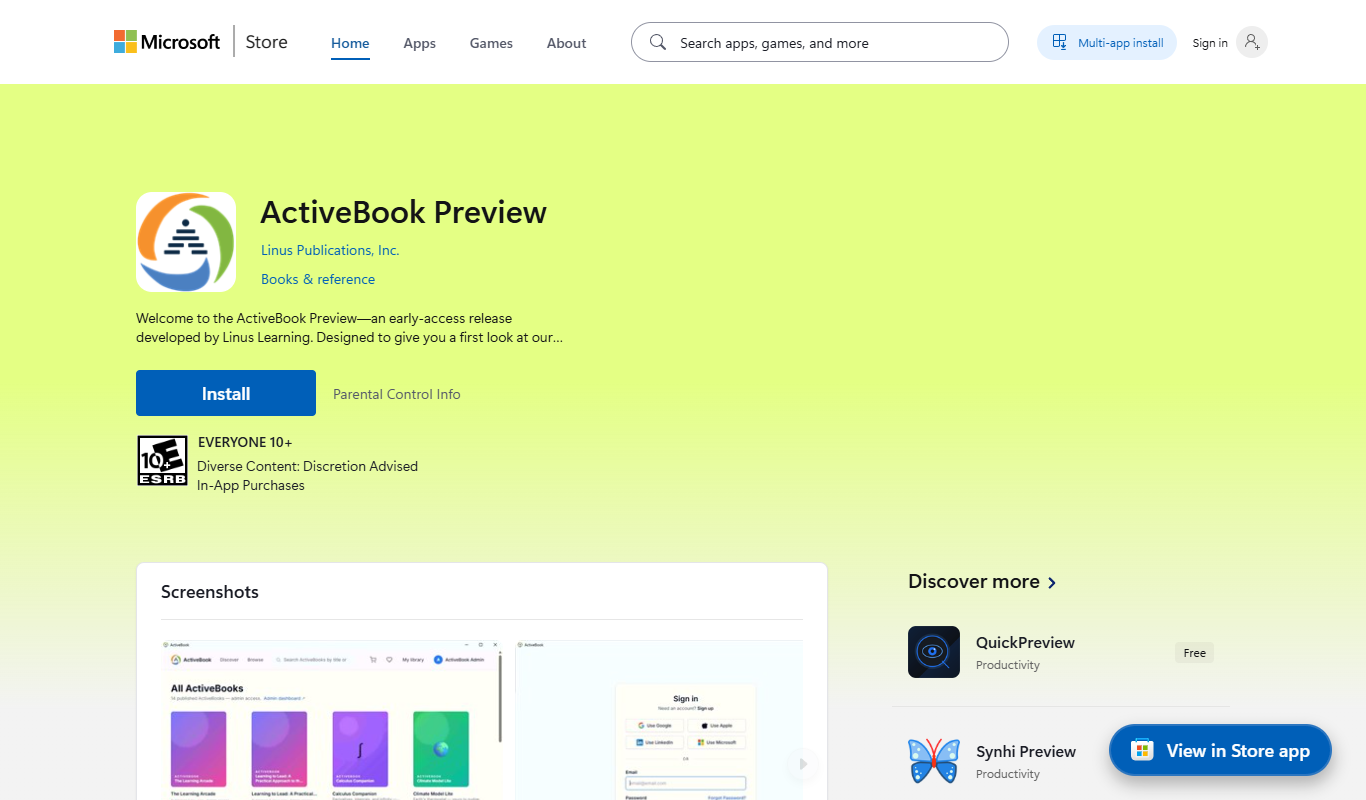
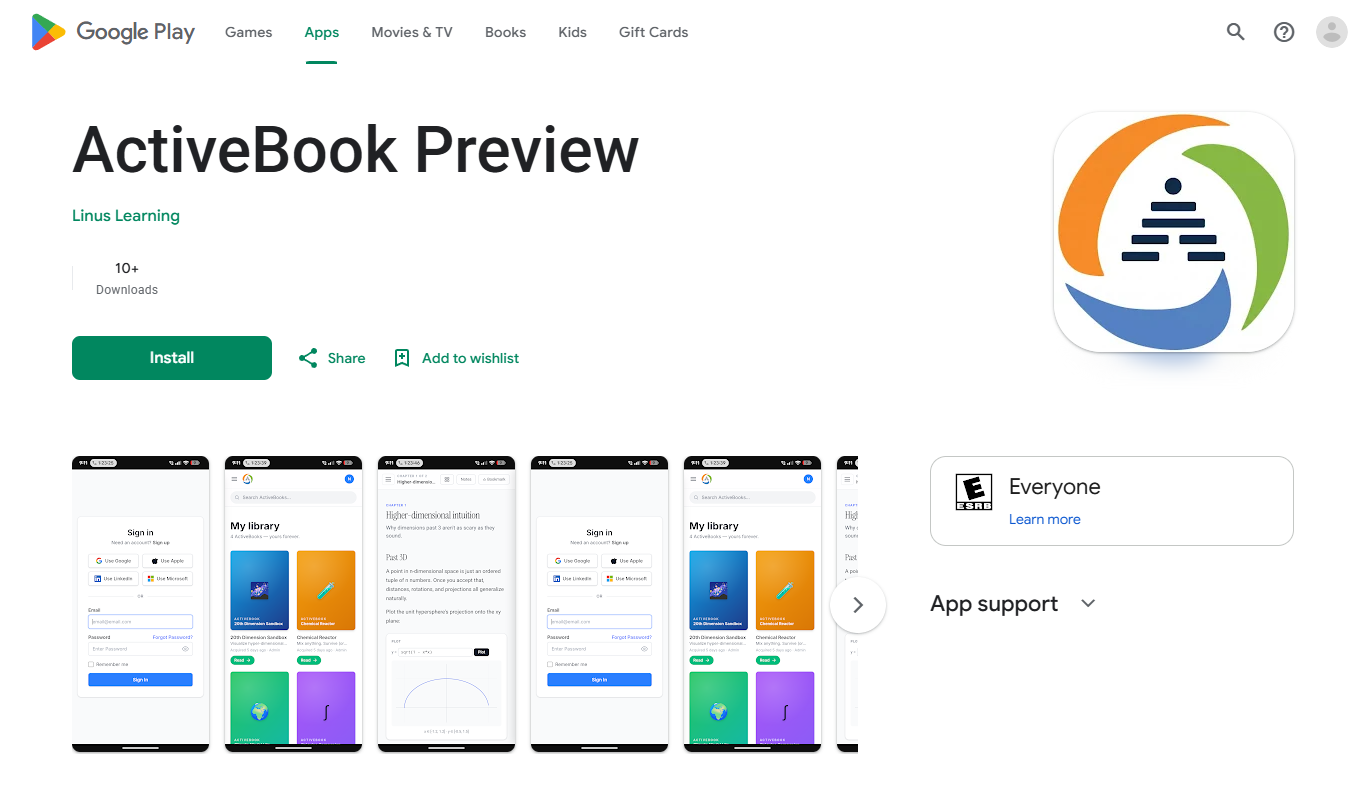
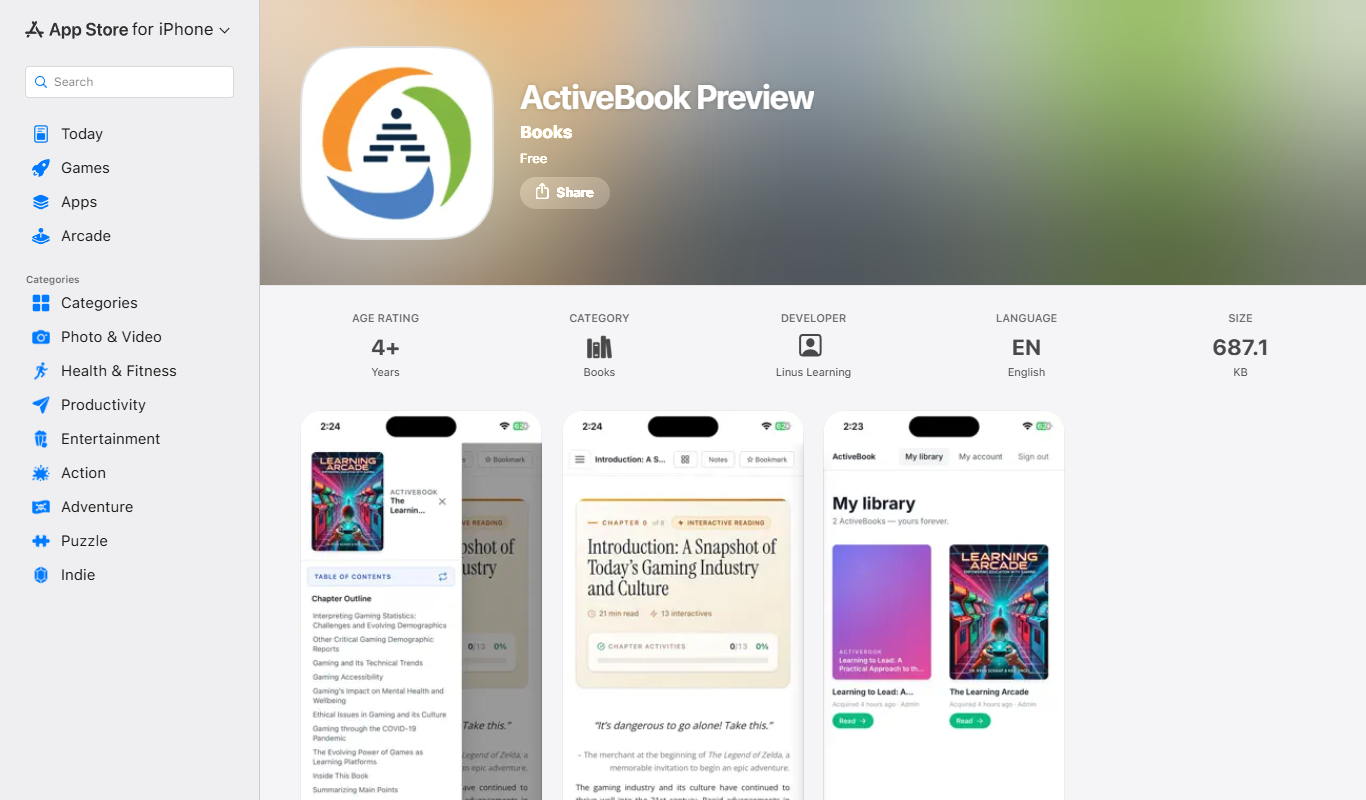
The website is where you buy books and manage your account. Reading happens in the ActiveBook app, which is free on every platform. In the store, search for “ActiveBook Preview” (published by Linus Publications) and install it.
Sign in to the app with the same email
Open the app and sign in with exactly the account you used to order. If you ordered with your email and a password, use those. If you signed in with Google, Microsoft, LinkedIn or Apple on the website, press the same button in the app.
- Accounts are created on the website, not in the app. If you don't have one yet, create it on activebook.ai first.
- Forgot your password? Use Forgot password — the reset email comes from no-reply@activebook.ai.
Open your book: My library → Read
After signing in, the app opens My library. Every ActiveBook you own is listed with a green Read button. Press it and the book opens at the first chapter (or where you left off).
Books you buy later show up here automatically. Your reading position, highlights and completed activities sync across all your devices.
Reading tools
Everything you need is on the chapter page. The numbers below match the picture.
- 1Contents — the list of chapters. On wide screens it stays open on the left; on small screens press the Contents button to open it.
- 2Chapter Outline / Table of Contents — switch between the book's chapters and the sections inside the current chapter.
- 3Notes — your highlights and notes. Select any text to highlight it in a colour or attach a note.
- 4Bookmark — mark the chapter to come back to.
- 5Chapter activities — quizzes, simulations and exercises in the chapter; the bar fills as you complete them.
- 6Library — back to your books. At the bottom of each chapter, Next takes you on; the last chapter ends with Finish.
- 7Accessibility — text size, spacing, dyslexia-friendly font, dark & high-contrast modes, a reading ruler and read-aloud.
Activities grade themselves instantly. Some chapters contain code cells you can run (R, Python, JavaScript, SQL) — the first run downloads the language runtime, which can take a moment.
Using the book for a class
If your instructor uses ActiveBook, join your class so your work reaches them: choose it at checkout, or open your Dashboard → My classes → pick your university, course and class → Join class. Your dashboard then shows how many quizzes you've answered and your scores.
- Class quizzes and worksheets appear at the end of the chapters your instructor assigned, with the due date, close date and number of attempts. Multiple-choice and fill-in answers are graded immediately; essays and uploaded work are graded by your instructor (you get an email when a worksheet is graded).
- Some courses run quizzes in the LMS portal instead — the chapter then shows a Take the quiz in the LMS portal card that opens in your browser.
- Titles that include an online course on linuslearning.net show a purple panel in My library with Open LMS and Resend my LMS login. That login is separate from your ActiveBook password; the resend button emails you a fresh one.
Have an access code?
Bought your book at a campus bookstore, or did your course hand you a code like ABK-XXXX-XXXX? Go to activebook.ai/redeem in your browser, sign in (or create your free account), enter the code and press Redeem. The book is added to My library — then continue from step 2.
If you launched ActiveBook from your course website, the code is already filled in for you — just sign in and press Redeem.
Trouble?
- “Open in the ActiveBook app” instead of the book — you're in a web browser. Reading only works in the app (step 2).
- The book isn't in My library — sign out and back in with the email on your order. Still missing? Email us with your order reference.
- “Signed out on this device” — your account can read on up to 3 devices at a time. Open the app on the device you want to use and it becomes active again; the device you used least recently is signed out instead.
- Can't sign in — try Forgot password; if you originally used Google, Microsoft, LinkedIn or Apple, use that same button.
- An activity won't load — close and reopen the chapter; in the app, sign out and in again.
More answers in the Help & FAQ. For anything else, email support@activebook.ai and tell us your device (Windows, Android, iPhone, iPad or Mac) and, for order questions, the order reference.
Still stuck? Talk to a human.
We reply within 1–2 business days. Include your device and what you expected to happen.